To login with your Google or Microsoft Account, you can follow below steps.
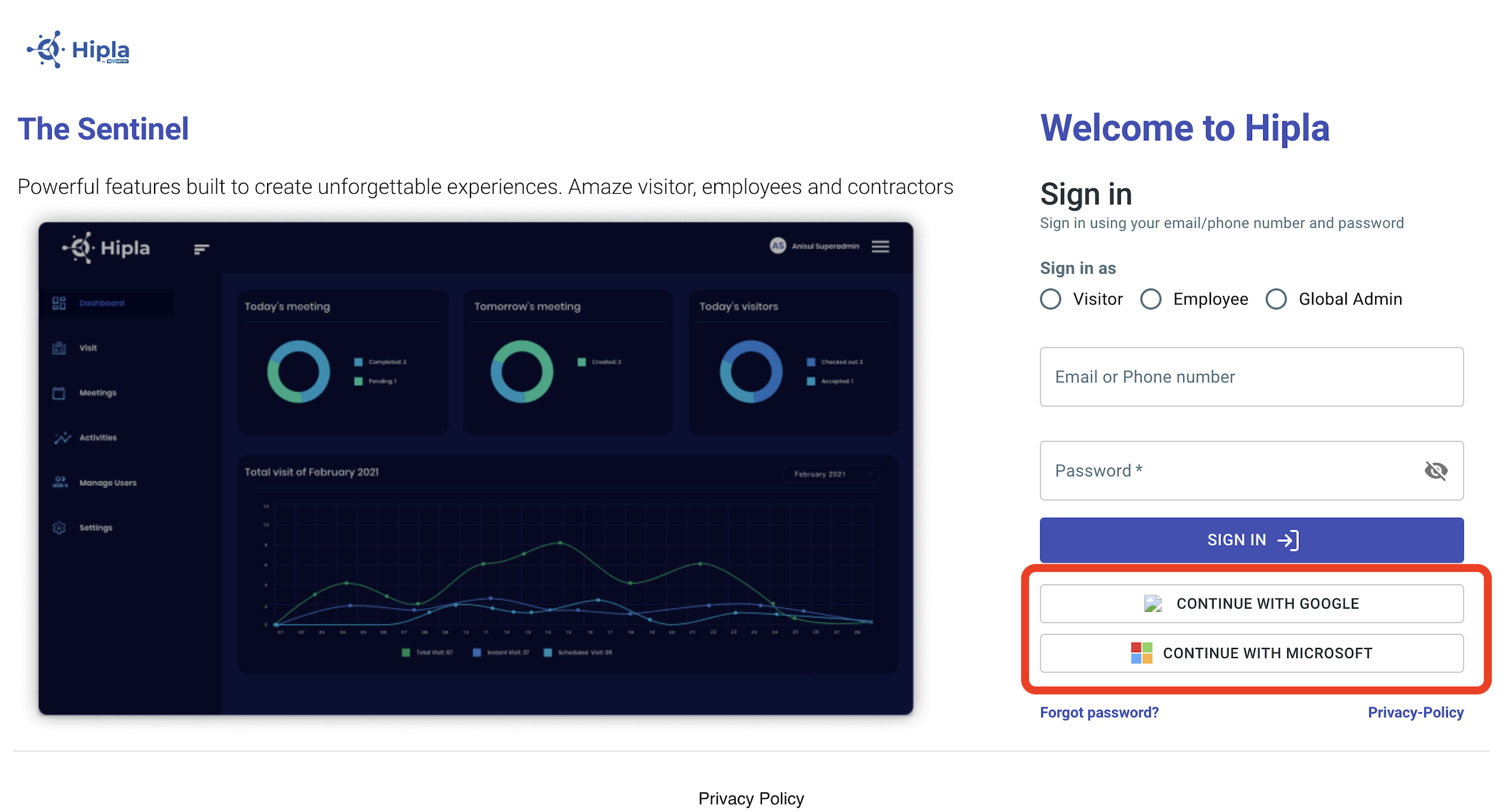
- Login to your hipla dashboard. There you will see login with google and microsoft at bottom right corner.
Login With Microsoft
- To login with microsoft, click on "Continue With Microsoft" button on bottom right corner of the login page.
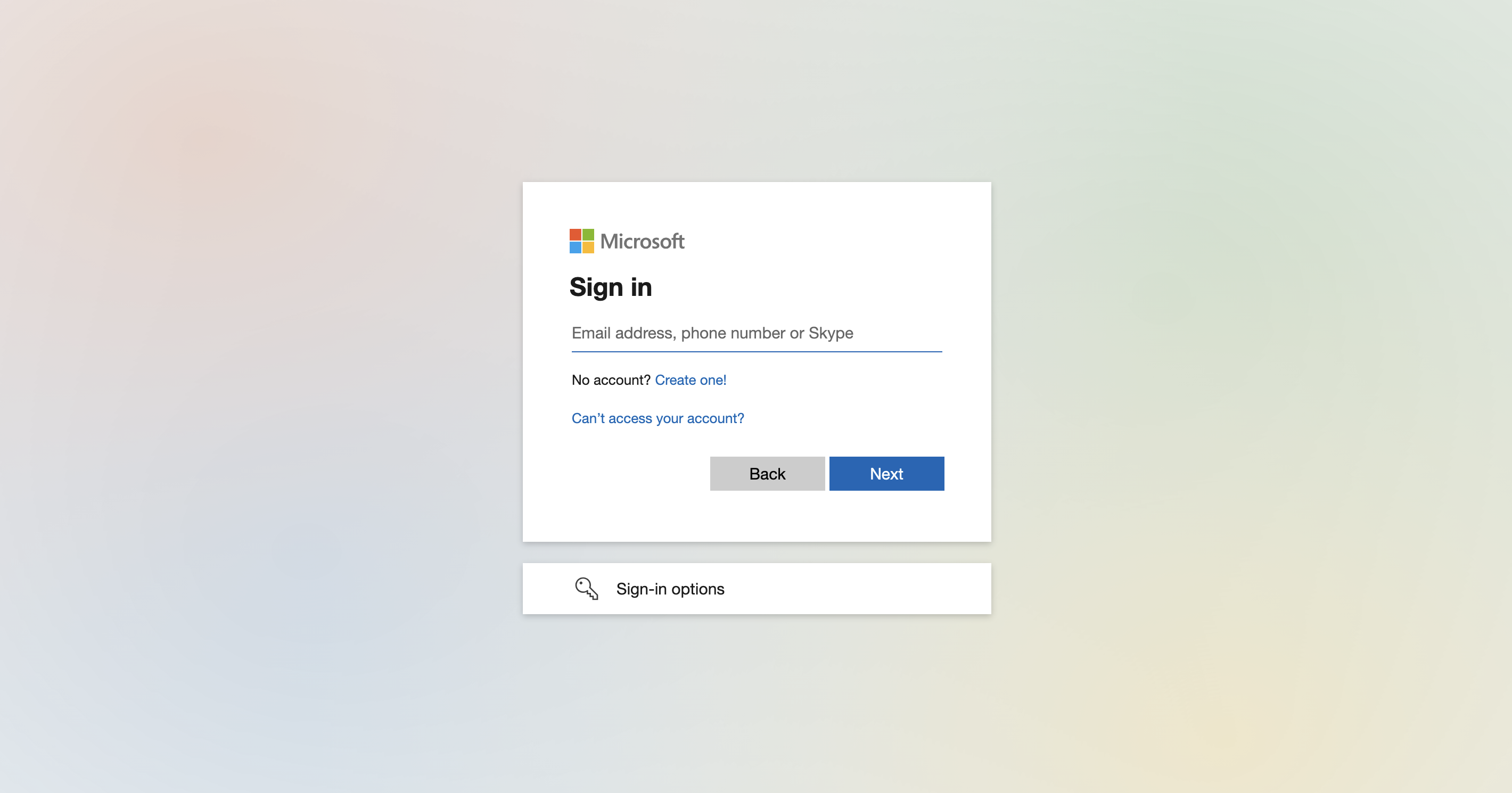
- You will be redirected to microsoft login page. Enter your email and password there to continue.
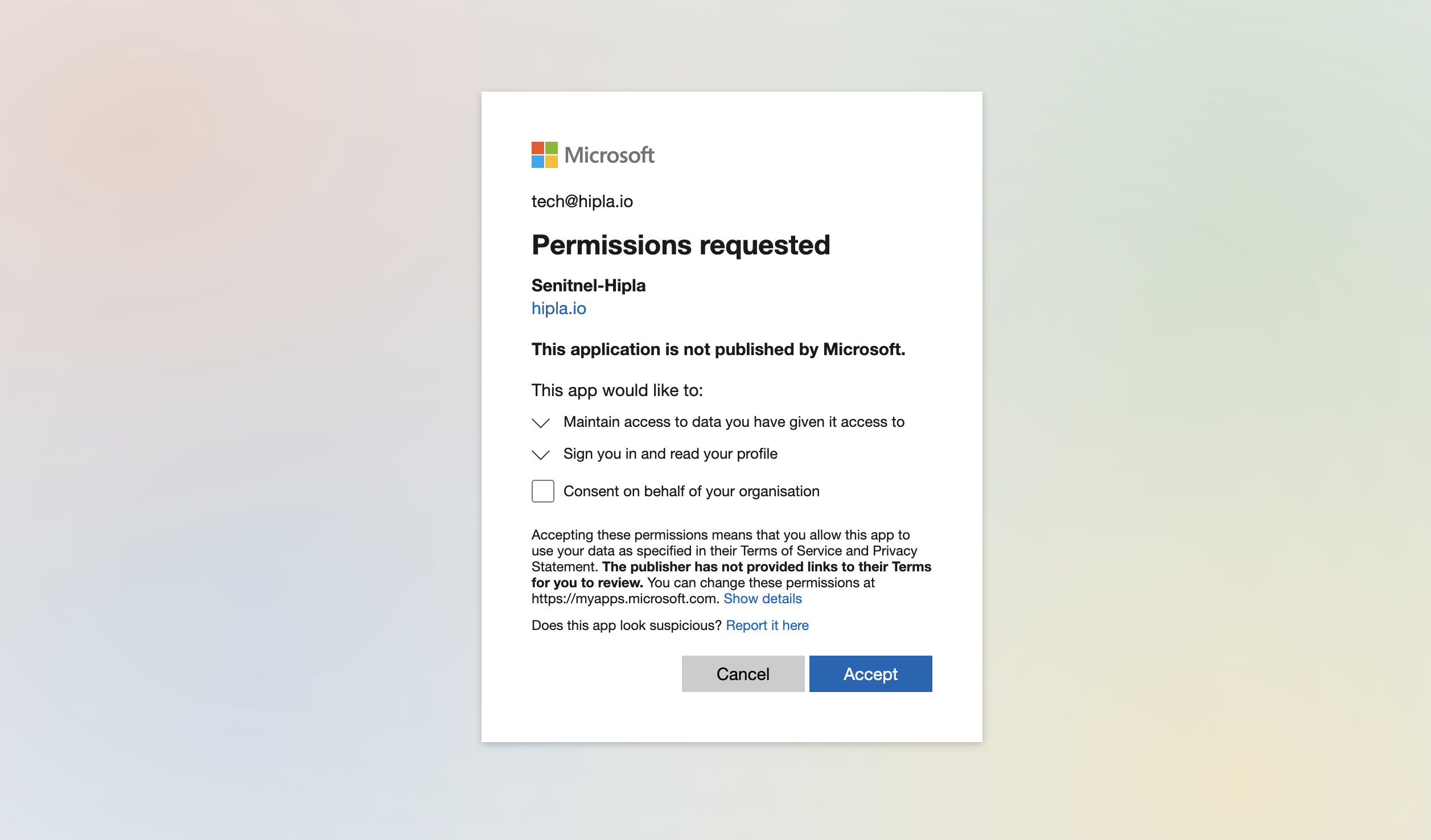
- Once you login you will be asked to give Hipla permission to read your email from outlook (as shown in screenshot below). Click on "Accept" button to continue. You don't need to select "Consent on behalf of your organisation."
- Once you will click on accept button, you have logged in successfully and you will be redirect to hipla dashboard if your email id is synced in Hipla system.
Login With Google
- To login with google, click on "Continue With Google" button on bottom right corner of the login page
- You will be redirected to Google login page. Enter your email and password there to continue.
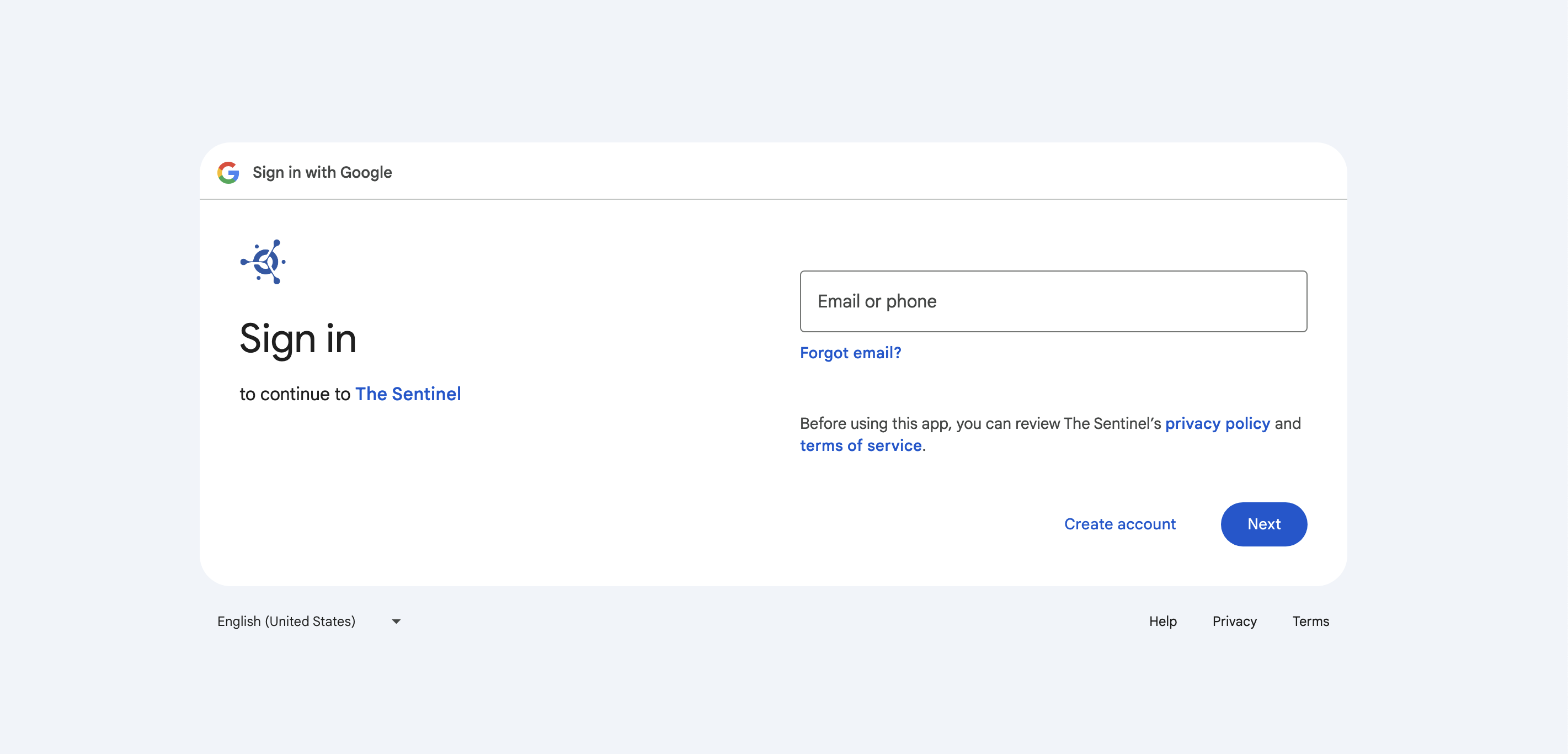
- Once you login you will be asked to give Hipla permission to read your email from google (as shown in screenshot below). Click on "Continue" button to continue.
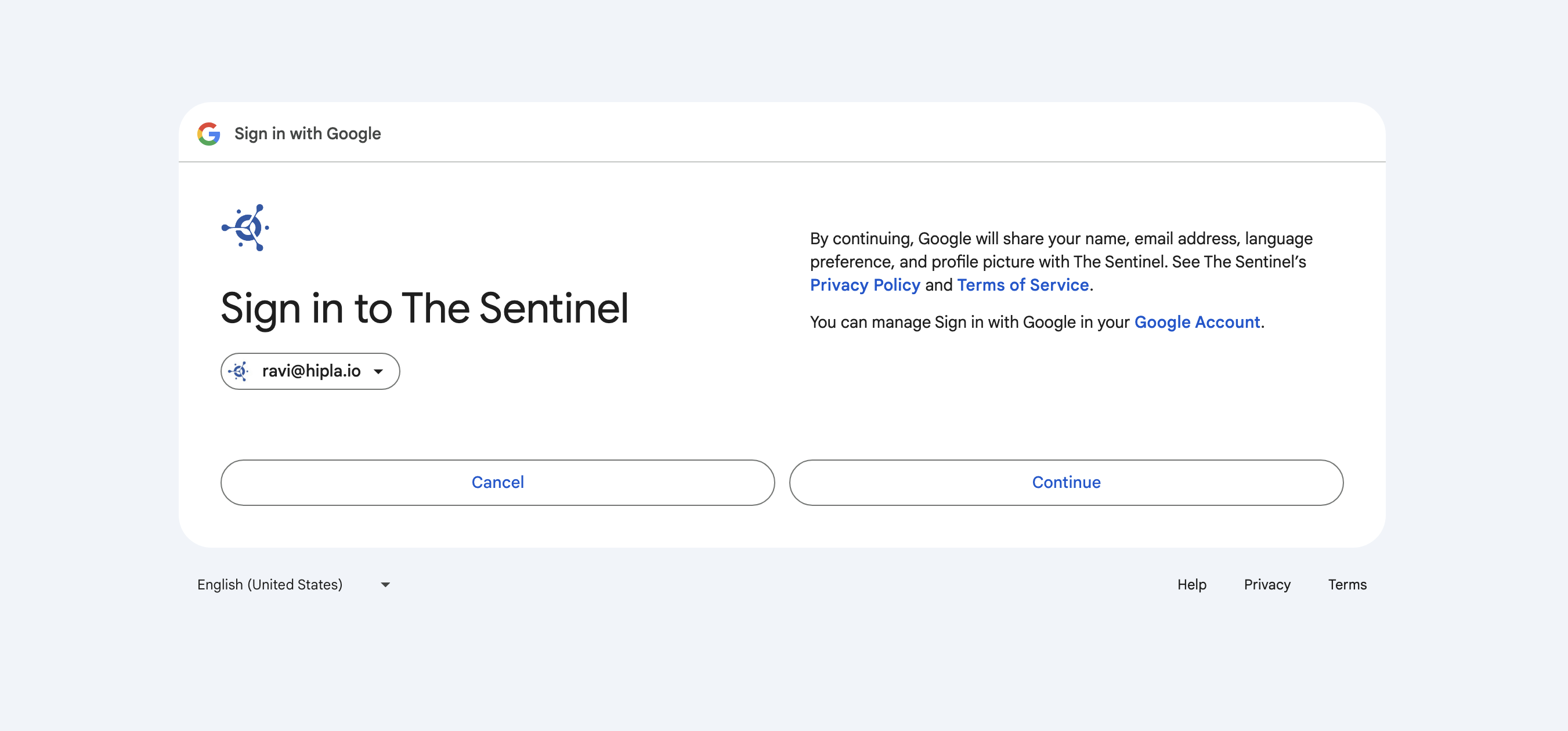
- Once you will click on continue button, you have logged in successfully and you will be redirected to hipla dashboard if your email id is synced in Hipla system.
Was this article helpful?
That’s Great!
Thank you for your feedback
Sorry! We couldn't be helpful
Thank you for your feedback
Feedback sent
We appreciate your effort and will try to fix the article